Abington Youth Football & Cheer
 Apponequet Junior Football & Cheer
 Barnstable Youth Football
 Bridgewater Badgers Youth Football
 Carver Cowboys Youth Football
 Dennis Yarmouth Youth Football & Cheer
 Duxbury Dragons Youth Football & Cheer
 East Bridgewater Vikings Youth Football
 Hanover Youth Football
 Hanson Warriors Youth Football
 Hingham Youth Football
 Hull Youth Football Association
 Lower Cape Bluefins Youth Football
 Marshfield Youth Football
 MMC Youth Football
 Norwell Youth Football
 Pembroke Titans Football & Cheer
 Plymouth South Jaguars Youth Football
 Plymouth Vikings Football & Cheer
 Raynham Giants Youth Football
 Rockland Youth Football
 Sandwich Bulldogs Youth Football & Cheer
 SciCoh Youth Football & Cheer
 Silver Lake Youth Football
 Wareham Tigers Youth Football
 West Bridgewater Youth Football
 Whitman Youth Football & Cheer
How To Sync Calendars for your Organization
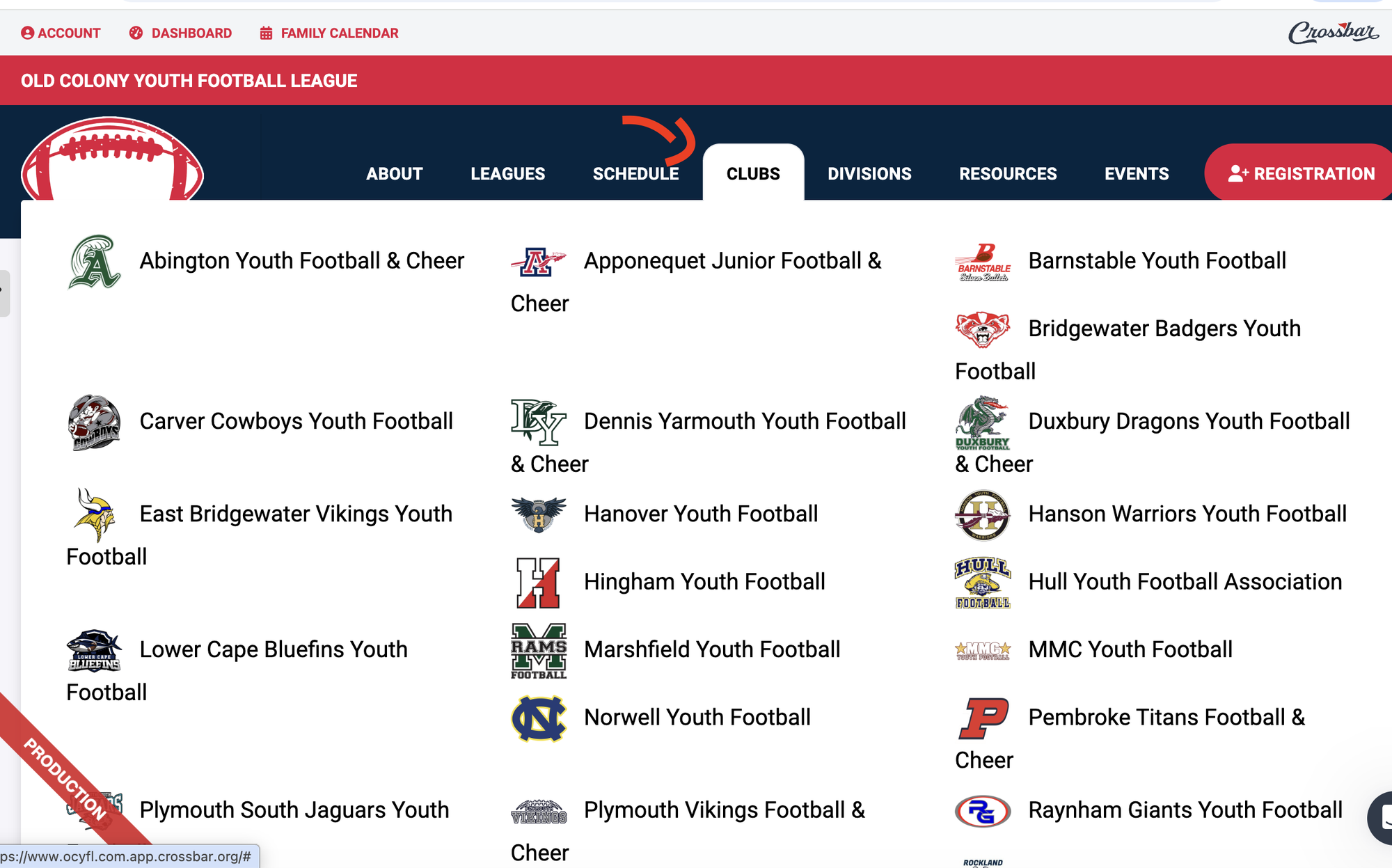
First you would hover over and select the Clubs tab on the navigation bar in between schedule and divisions at the top.
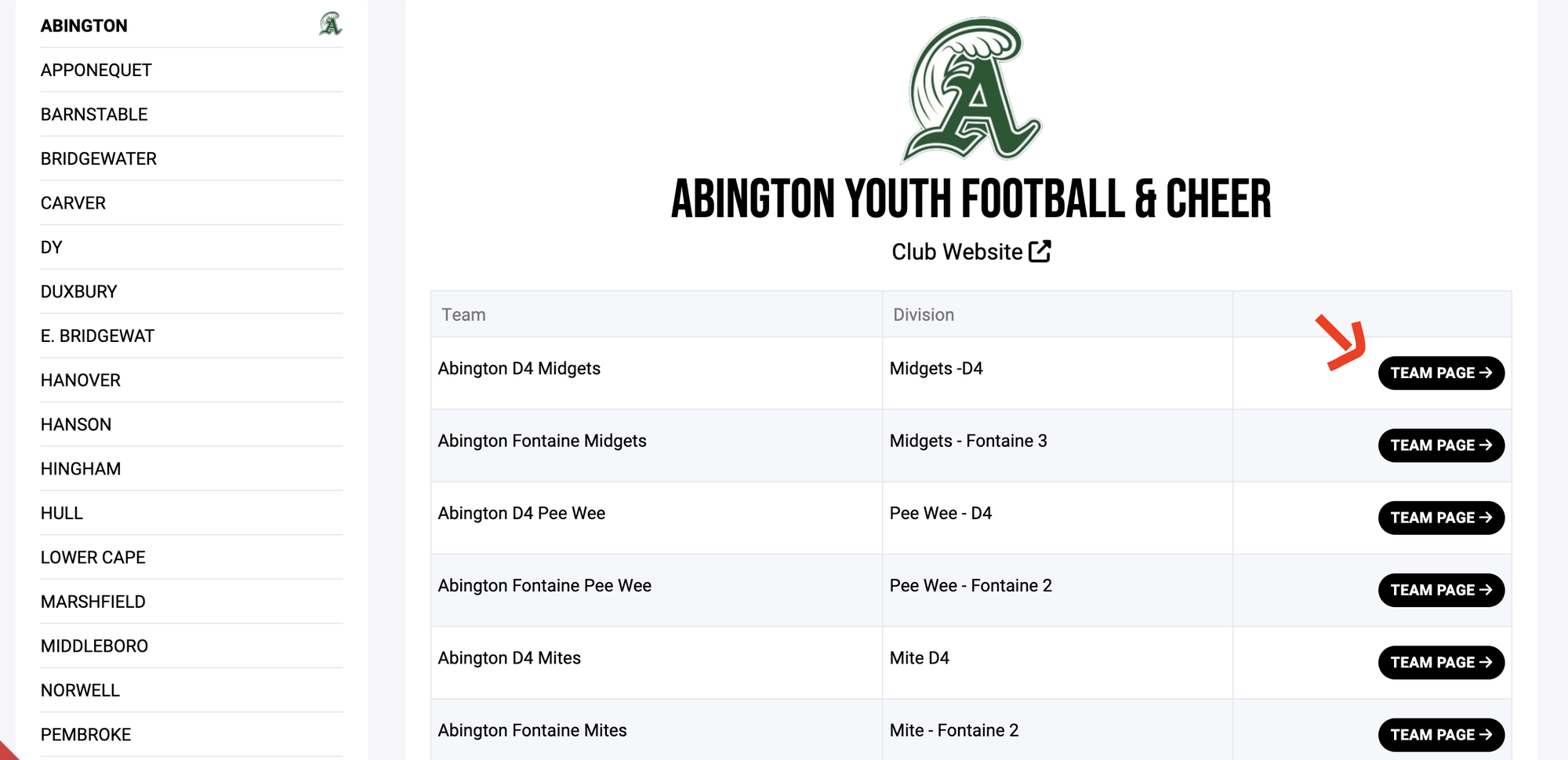
You would then select your organizations name from the list of clubs.
After selecting you will then choose the team name listed under your organization on the clubs page here on the OCYFL website.
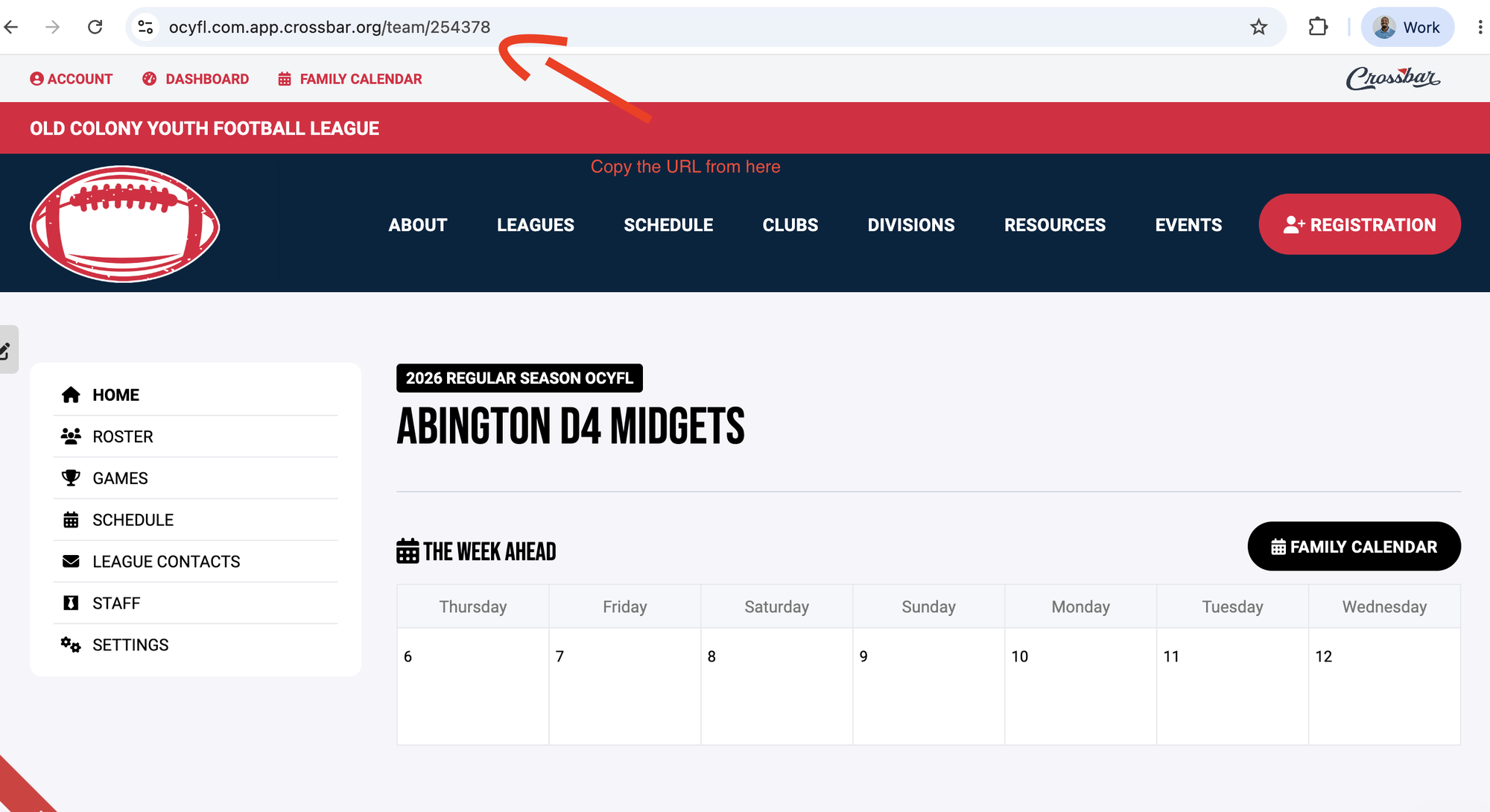
Once on the team page you will copy the URL in the web browser.
Then you will navigate to your organizations website and go to your matching team name on your own website.
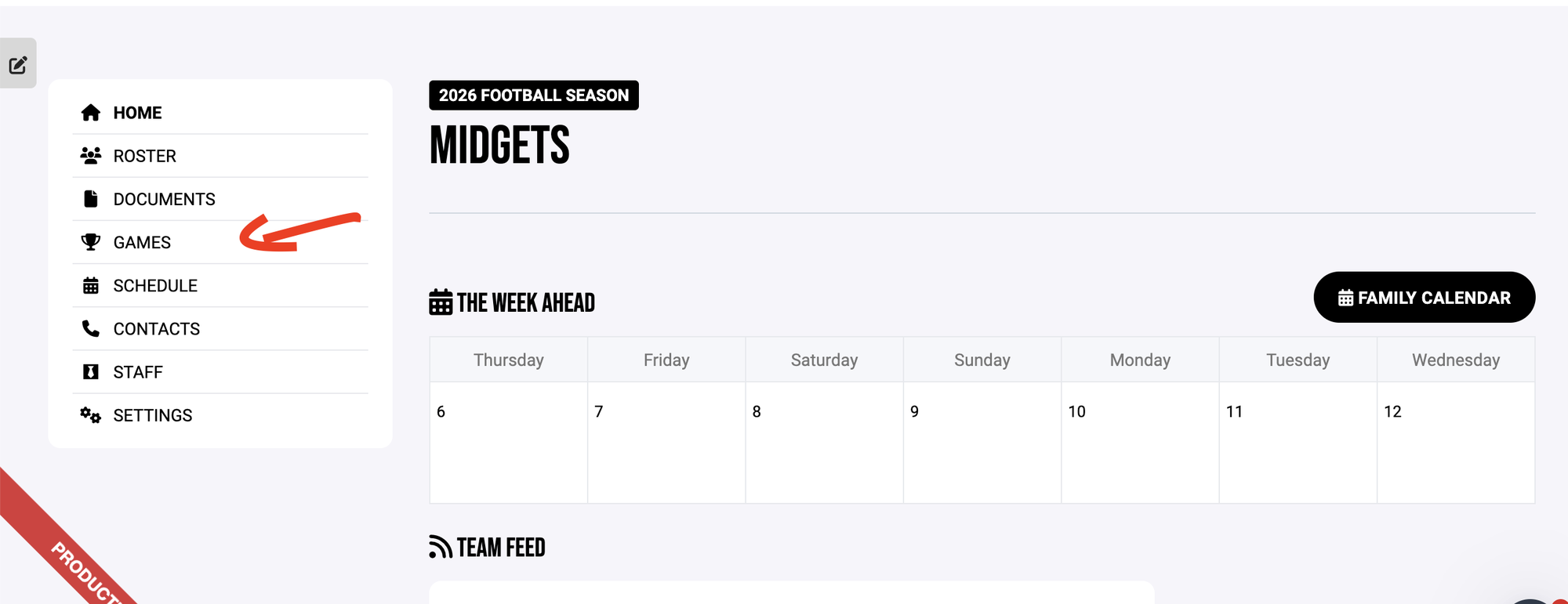
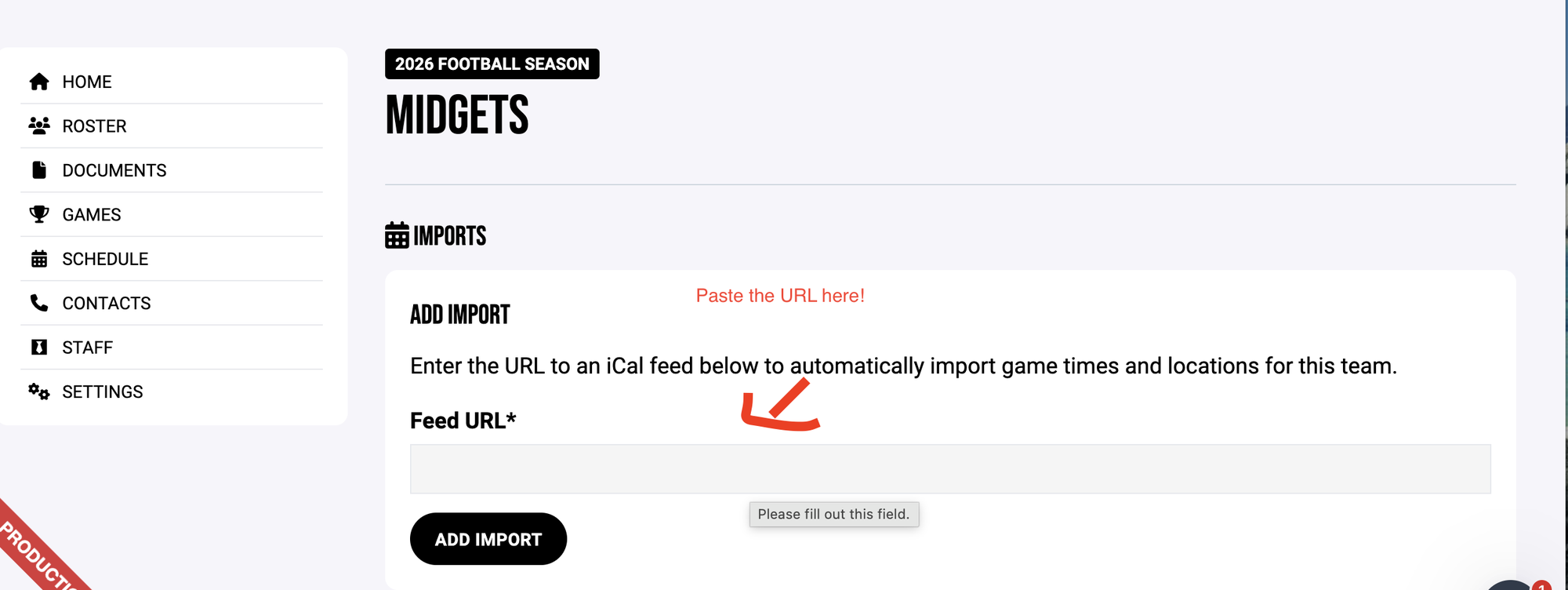
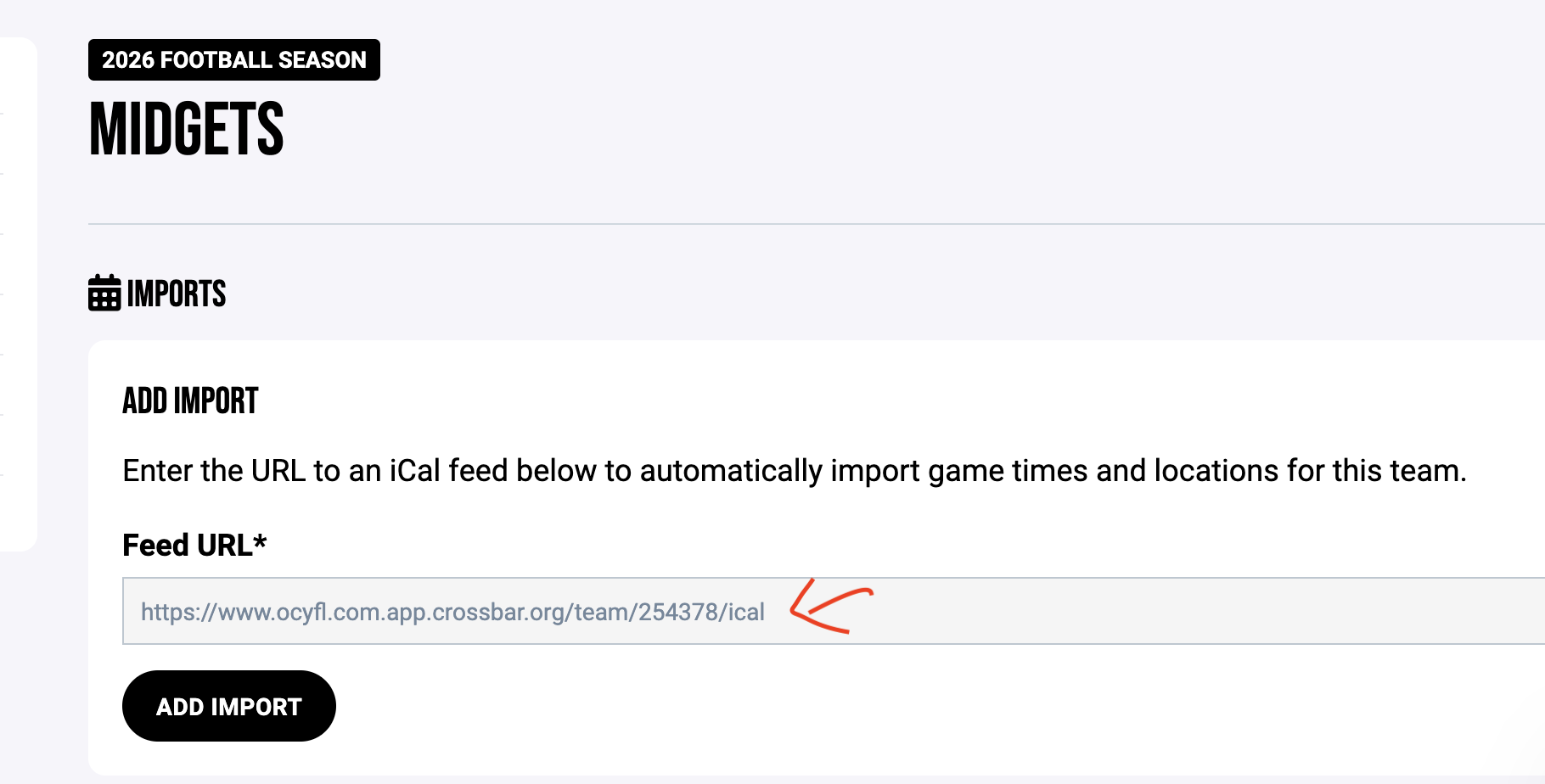
Once on the team page you will Select Games and then imports. After selecting imports in that screen you will paste the URL you copied from the OCYFL website in the space provided.
Once it is copied make sure to add in /ical on the end of the URL. This is what pulls in all the games and syncs them.
After adding import the games are synced.
Team page on your organization website